
Orders and cart in the B2B panel
You place orders in the b2b.dropcom.eu panel, 24 hours a day, 7 days a week. A correct order placed by 12:00 usually leaves the same day.
You need an active account
Without an active business account you cannot place orders or see stock levels. How to open one: Registration.
How to place a dropshipping order
-
Step 1
Add products to the cart
In the „Oferta” (Offer) tab, find a product and add it from the list or from the product page. Enter the quantity. A confirmation appears in the top right corner.
Recording of the previous panel design (2022), account details and prices blurred. -
Step 2
Check the cart
In the cart you can change quantities, recalculate the order and remove an item with the „Usuń” (Remove) button. You can export the order to Excel or PDF.
-
Step 3
Choose the shipping option
Dropcom.eu courier: you choose a carrier from the list. Own courier („Kurier własny”): you attach your A6 label in the „Załączniki do zamówienia” (Order attachments) field. You see the current delivery cost in the cart. Details: Shipping and labels.
-
Step 4
Enter your customer’s address
When shipping to your customer, choose the „inny” (other) address and fill in the form. You can save the address under „Twoje adresy dostaw” (Your delivery addresses).
-
Step 5
Choose payment and send
Choose a payment method assigned to your account. Here you also see trade credit, deferred payment or any overdue amounts. If the invoice should show different details from your account, change them here.
The system automatically puts an order on hold if the label is in the wrong format (for example A4). We will ask for a correct label, and the order goes to the back of the queue.
Oversized and pallet products need the right shipping option. See: Oversized products.
An order placed by 12:00 usually leaves the same day
We ship most orders placed by 12:00 on the same day. The condition: the order is correct, so the system can pass it straight to processing. We process a correct order within 24 hours.
What holds an order up:
- a label in the wrong format, or no label when you use your own courier,
- an unpaid order or a wrong payment reference,
- the wrong shipping option for an oversized product.
Finding your way around the B2B panel
The main tabs of the panel, each with a short description. Tab names are given as they appear in the panel, with a translation.
The recordings show the previous panel design. The tab layout is the same.
Home page
News (opening hours, deliveries, what is new in the panel), invoices and amounts due, new products.
„Oferta” (Offer)
Products by category menu and filters: oversized, pallet, courier company, Parcel Locker size. You can hide out-of-stock products.
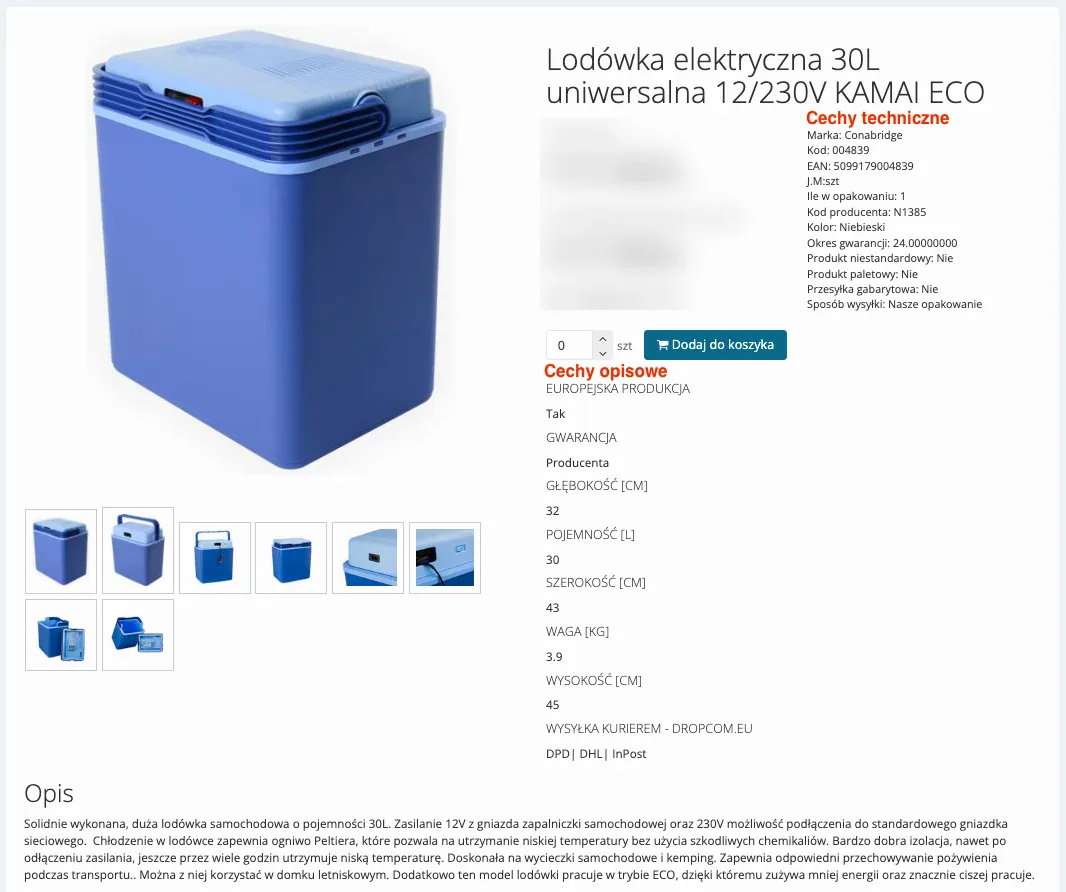
Product page
Technical features (shipping, manufacturer, warranty) and descriptive ones (colour, dimensions, weight).
„Twoje zamówienia” (Your orders)
Order numbers, statuses, related documents, tracking number.
„Dokumenty i płatności” (Documents and payments)
Sales invoices and credit notes, settled and unsettled documents, refunds.

„Aktualności” (News)
Current information about the wholesaler, including promotions.
Sales and payment reports
Your most frequently bought products and turnover in a chosen period.
„XML”
The link to your XML file and the date it was last downloaded.
„Twoje adresy dostaw” (Your delivery addresses)
Saved addresses, editing, default address.
Stock levels in the panel update in real time. Out-of-stock products are visible but cannot be ordered. Occasionally the stock shown differs from the actual stock, for example after a stocktake. In that case we e‑mail you and suggest a solution, such as a replacement product.
What the numbers and statuses mean
The panel gives each order a number straight away, in the format B2B/number/year. A few minutes later a number from the ERP system appears (ZO/number/year): processing has started. In the „Dokumenty powiązane” (Related documents) column, a pro forma invoice appears first, and a VAT invoice once the payment is settled.
| Status in the panel | What is happening |
|---|---|
| Nowe zamówienie (New order) | The system has registered the order and is checking the payment. |
| Oczekuje na wpłatę (Awaiting payment) | The order is waiting for payment, because you have no trade credit or deferred payment, or the limit has been exceeded. |
| W realizacji (In progress) | The warehouse is picking the goods from the shelves. |
| Pakowane (Being packed) | The order is on the packing table. |
| Spakowane (Packed) | The parcel is waiting for the courier. |
| Wysłane (Shipped) | The courier has collected the parcel. You see the tracking number in the panel and receive it by e‑mail. |
| Anulowane (Cancelled) | The order was cancelled at your request or on our side. |
The status changes automatically when something happens, for example when the payment is booked or the courier arrives.
Need to change or cancel an order?
Processing is automated, so the order may already be under way. Write to biuro@dropcom.eu as soon as possible and include the order number.
How many parcels we send
We try to pack an order into one parcel, and large orders onto a pallet. The warehouse decides the final number of parcels when packing.
If several parcels are needed, we will e‑mail you. With our courier, we will ask about the extra charge; with your label, we will ask for additional labels.
Four things that speed up shipping
Correct payment reference
Use the ERP order number (ZO/…), or the collective invoice number if you have trade credit. When a payment has to be matched by hand, processing takes on average 48 instead of 24 hours.
A6 label
With your own courier, attach an A6 label (100×150 mm), unchanged.
Regular payments
Paying on time lets you qualify for trade credit or deferred payment. Then your orders do not wait for payment.
The right shipping option
Choose the correct shipping option for oversized and pallet goods. Otherwise we change the courier during processing.
Questions about orders
Do orders reach you automatically?
No. The XML file brings products, photos, descriptions and stock levels to your shop. You place each order in the B2B panel at b2b.dropcom.eu.
More: Orders and cartWhat if a product runs out after I order?
It is rare, for example after a stocktake. We will then e‑mail you and suggest a solution, such as a replacement product.
How do I find the tracking number?
In the “Twoje zamówienia” (Your orders) tab of the B2B panel, next to an order with the status “Wysłane” (Shipped). You also get the number by e‑mail.
Any questions?
Ask Mr Drop, our AI assistant, first. He knows the guides by heart and answers straight away, 24/7, even on a Sunday at midnight.
Prefer e‑mail? Write to biuro@dropcom.eu.